Fix Audio Out of Sync Apple TV 4K: Proven Solutions
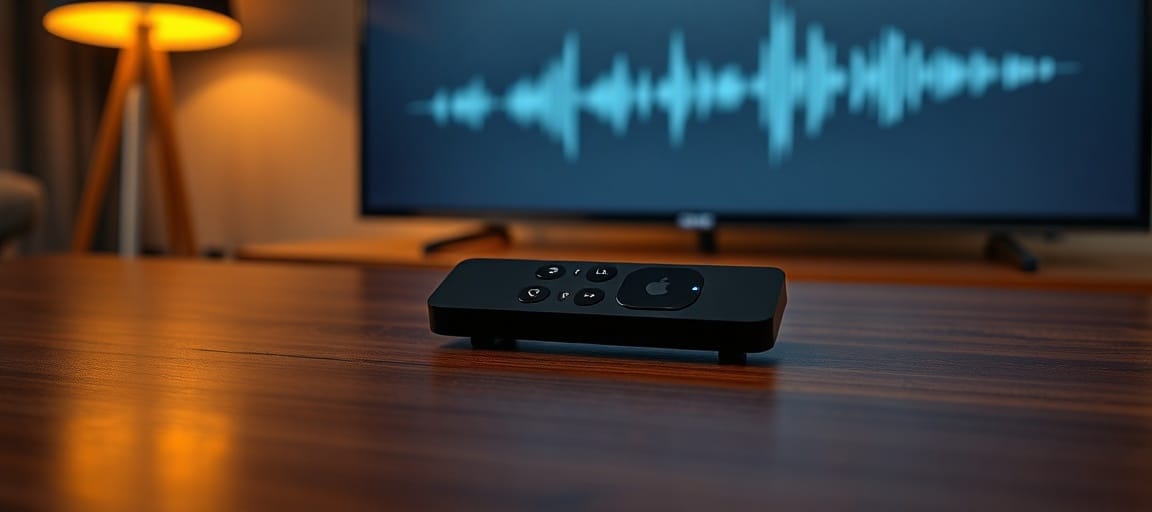
Ever kicked back for a movie night, only to catch the voices lagging behind the lips on your Apple TV 4K — yeah, that audio‑out‑of‑sync annoyance is real.
But the good news? Most of the time you can iron it out with a couple of tweaks, and you’ll be streaming smoothly again before you know it.
In this guide we’ll break down the usual culprits, share some quick fixes that actually work, and dive into deeper troubleshooting so you can lock in perfect sync every single time.
Understanding Audio Sync Issues on Apple TV 4K
Audio‑video desync shows up when the sound reaches your TV or receiver a beat ahead or behind the video frame it's supposed to match.
And on your Apple TV 4K, the culprit might be a software glitch, a wonky HDMI handshake, or a setting that sneaks in extra processing delay.
Sure, the symptom looks identical—lips moving before you hear the words—but the underlying cause changes, so a methodical approach is your best bet.
Common Causes of Audio Out of Sync
- HDMI cable or port issues: A dodgy cable, a loose plug, or an HDMI version that doesn’t match can slip in latency.
- Audio output format mismatch: When your Apple TV pushes Dolby Atmos or PCM but the soundbar wants something else, it needs extra processing time.
- Yet TV or receiver post‑processing: Things like motion smoothing, noise reduction, or audio delay settings often tack on lag.
- Software bugs: Sometimes a tvOS update throws in a sync glitch that gets fixed in a later release.
- Third‑party apps: Certain streaming apps manage audio buffering in their own way, which can cause drift as time goes on.
Quick Fixes to Try First
- Restart your Apple TV: Head to Settings → System → Restart. A quick reboot wipes out temporary glitches.
- Check HDMI connections: Pull the HDMI cable out of the Apple TV and the TV/receiver, then plug it back in firmly. Swap to another HDMI port or grab a cable you know works.
- Adjust audio format: Go to Settings → Video and Audio → Audio Format. Switch from Dolby Atmos to Stereo or PCM and see if the sync gets better.
- Disable TV audio processing: On your TV or soundbar, switch off things like “Audio Delay,” “Lip Sync,” “Noise Reduction,” or “Motion Smoothing.”
- Update tvOS and apps: Make sure your Apple TV is on the newest tvOS (Settings → System → Software Updates) and update any streaming apps you've installed.
Advanced Troubleshooting Steps
If the quick fixes didn’t do the trick, it’s time to dig deeper with these methods.
- Manual audio delay adjustment: Many receivers and soundbars have a lip‑sync setting in their audio menu. Throw in a small negative or positive delay (usually in milliseconds) until the audio lines up.
- Use HDMI‑ARC or eARC correctly: If you’re sending audio via an ARC/eARC port, make sure the feature is turned on for both the TV and the receiver, and that the Apple TV plugs into the TV’s HDMI input—not straight into the receiver.
- Reset audio settings to default: In Settings → Video and Audio → Audio Format, pick Automatic then switch back to your favorite format. This can wipe out any hidden preferences.
- Test with a different app: Try playback from Apple TV+, Netflix, and a third‑party IPTV app (such as The‑ZTV Player, noted below). If the sync issue shows up in just one app, that app’s buffering is probably the culprit.
- Factory reset as a last resort: Head to Settings → System → Reset → Reset All Settings. This puts everything back to factory defaults while keeping your accounts intact, so you can set it up again and test.
- When you’re troubleshooting playback hiccups, it helps to figure out whether the glitch lives in the Apple TV system itself or in a particular streaming app.
- The‑ZTV Player is a free companion playback app that ships with a The‑ZTV Subscription and is tuned for low‑latency streaming.
- Since it manages audio buffering unlike most generic apps, flipping to The‑ZTV Player can quickly show whether the sync problem is app‑specific.
- If you already subscribe to The‑ZTV, just grab The‑ZTV Player from the App Store, log in with your credentials, and give it a quick playback test.
- And should you notice the sync improve, think about making The‑ZTV Player your go‑to app for live TV and on‑demand content.
- For more details on setting up the player and squeezing out top performance, check out our streaming guides blog.
- If you’ve run through all the steps above and the audio is still out of sync, the trouble could be hardware‑related—maybe a busted HDMI port on your Apple TV or a firmware mismatch with your TV.
- At that point, getting expert help can save you a bunch of time.
- Hit up our support page to open a ticket, or jump into a live chat with our tech team.
- Be ready to share the following details:
- The exact tvOS version and your Apple TV model.
- Which HDMI cable and which ports you’re plugged into.
- The specific app or apps where the sync drops out.
- Any error messages or odd behavior you’ve noticed.
- Audio‑out‑of‑sync on Apple TV 4K is annoying, but it’s hardly ever a dead‑end.
- By methodically checking cables, audio formats, TV settings, and app behavior, you’ll usually nail down the cause and have a fix in minutes.
- Just keep in mind that staying current with software updates and using a purpose‑built player like The‑ZTV Player can stop many sync issues before they even begin.
- Enjoy flawless audio and video harmony—happy streaming!
- Ready to step up your IPTV game? Explore premium IPTV packages at TheZTV
Conclusion
When to Contact Support
Using The‑ZTV Player for Better Sync
Was this article helpful?
Written by Alan ziegler
Content Editor at TheZTV. Passionate about bringing you the best IPTV guides, streaming tips, and industry news.
Join the TheZTV Newsletter
Get the latest IPTV guides, cord-cutting tips, and industry news delivered straight to your inbox. No spam, just value.